Updated October 2026
How to get your child's Seesaw photos into this year's photo book
If your child's school uses Seesaw, some of the best photos of their year are in there: the art projects, the class trip, the first week. Most photo books are built from your phone or Google Photos, so the school photos get left out. The fix is to download them from Seesaw and move them into Google Photos with their dates and the teacher's captions, then make the book as usual.
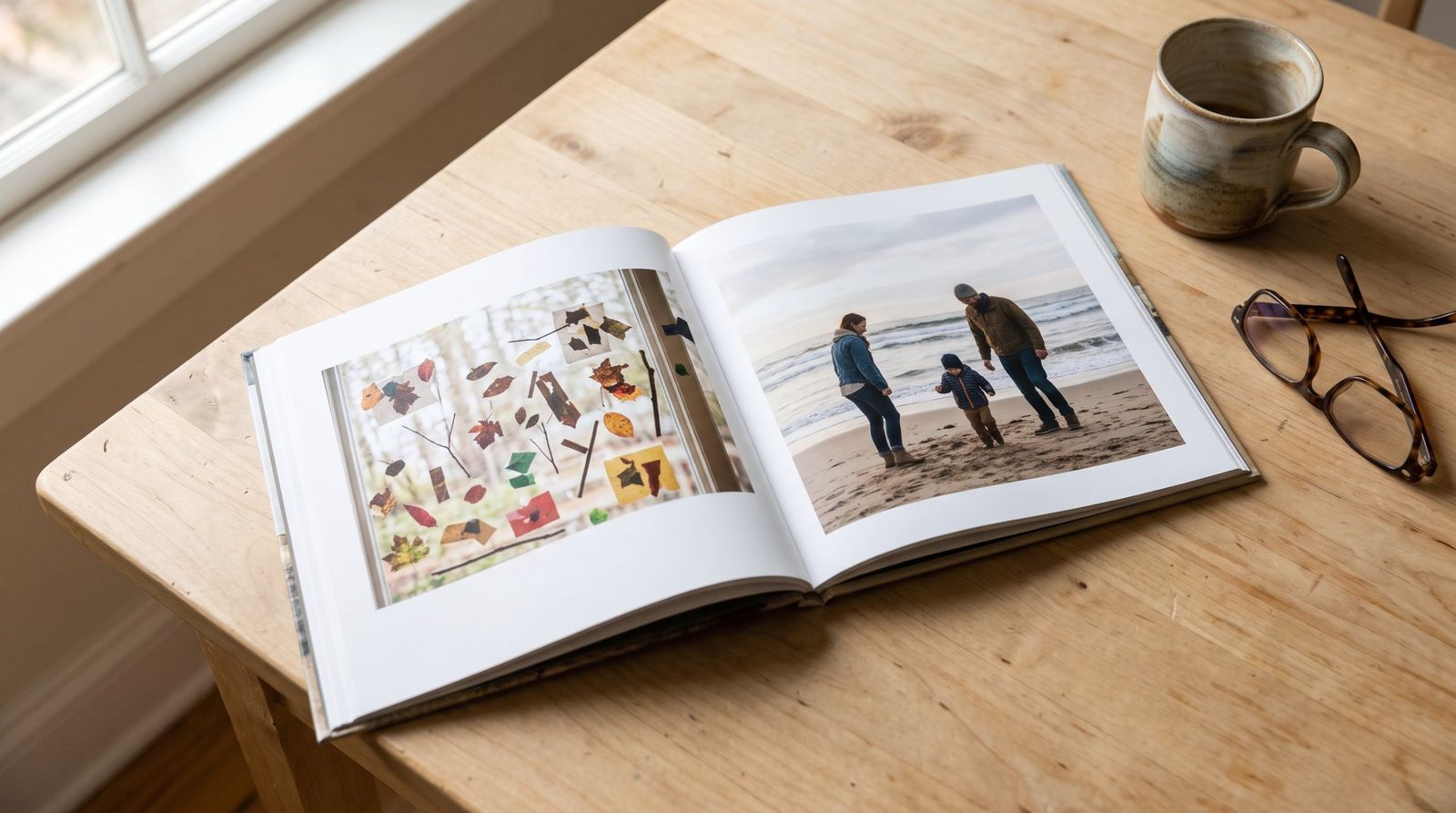
Why the school photos usually miss the book
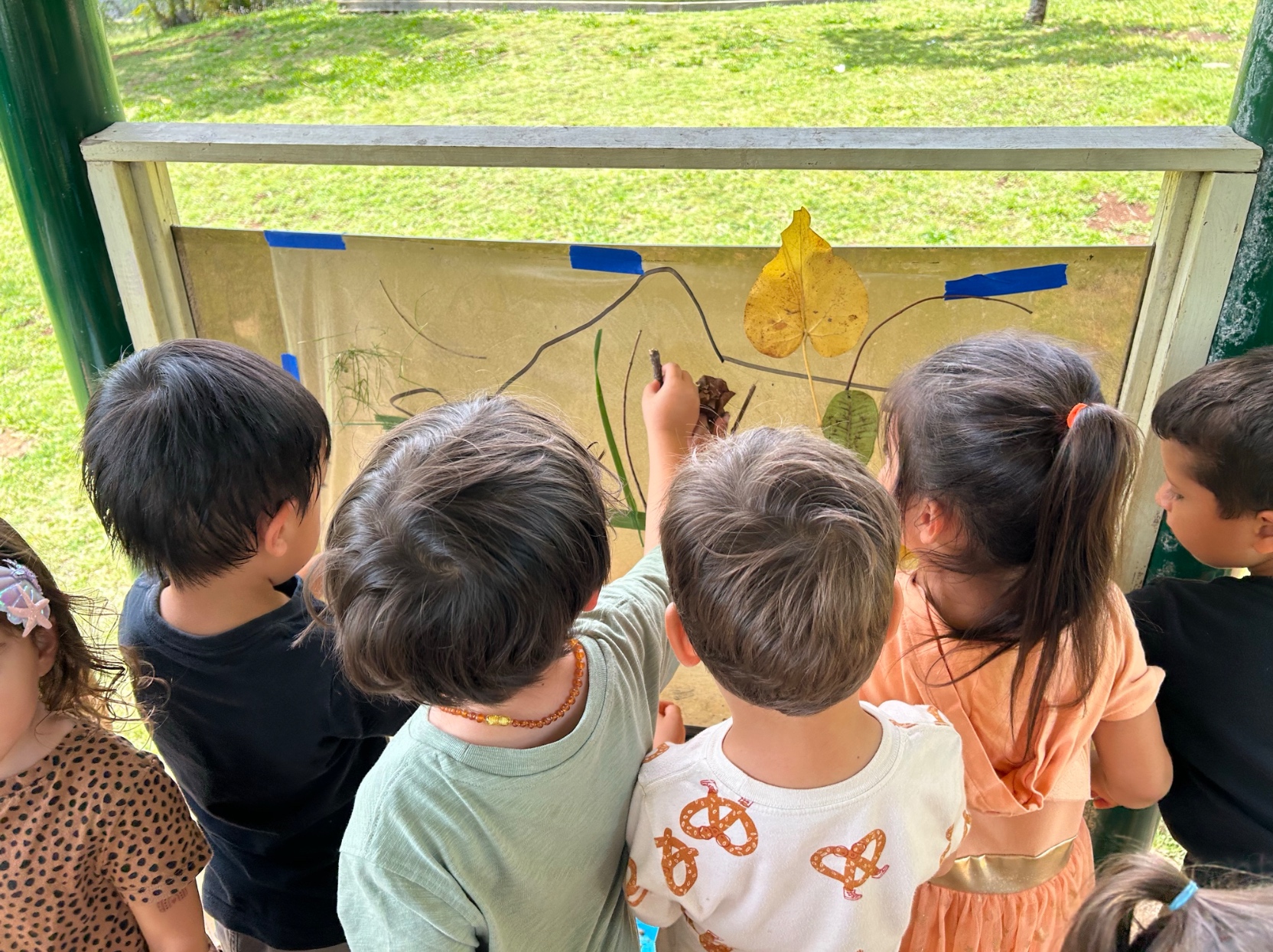
Teachers post to Seesaw all year, often with a short note about each moment. Those photos live in the Seesaw app, not on your phone, so they don't show up when a photo-book service asks you to pick from your camera roll or Google Photos.
You can save Seesaw photos one at a time, and plenty of parents end up taking screenshots of the ones they want. That's fine for a photo or two. For a whole school year it's slow, and the teacher's caption gets left behind.
Seesaw also lets families download everything at once. The catch is what comes back: a zip file organized by month, with long numeric filenames and the teacher's captions stored in separate HTML files. You can open it, but you can't easily drop it into a photo book.
How to do it before you start the book
- Download the Seesaw journal. Go to app.seesaw.me in a browser, not the Seesaw app. Sign in, open Account Settings, and choose Download Journal Archives. Full guide here.
- Move the zip into Google Photos. Upload the zip to Little Archive. Each photo arrives in Google Photos with the teacher's caption and the date it was posted, so the school photos sit in the right month next to the rest of your year.
- Make the book as usual. Many photo-book services let you add photos straight from Google Photos. The school photos are now part of the same library, so you can pick them alongside the family ones. The captions are there too if you want to use the teacher's words on the page.
Get the school photos in first
Little Archive moves your Seesaw photos into Google Photos with every teacher caption attached. Upload the zip, preview your photos, pay once.
Save your Seesaw photos →Common questions
- Can I make a photo book directly from Seesaw?
- No. Seesaw doesn't offer printing or photo books, and most photo-book services don't connect to Seesaw. The photos need to be downloaded first and put somewhere the photo-book service can reach, like Google Photos.
- Will the photos be in the right order?
- If you move them with Little Archive, yes. Each photo keeps the date the teacher posted it, so Google Photos places it in the right month. If you upload the raw files from the zip instead, they'll usually show the date you downloaded them.
- Can I include the teacher's captions in the book?
- The captions travel with each photo into Google Photos, so you can read them while you're choosing pictures and copy the ones you want onto the page. Whether a photo-book service shows the caption automatically depends on the service.
- My child's class is still going. Should I wait until the end of the year?
- You can download a class journal any time, and you can download it again later to pick up new posts. For a holiday book, download now and you'll have everything from the start of the school year so far.
- What about photos from previous years?
- Each class is a separate journal. If your kids have used Seesaw in the past, older classes may still be available under Download Journal Archives.
Why I built this
I built Little Archive after my son's preschool export came back as a folder I couldn't really use. The photos I most wanted for our family book were the ones his teachers had taken, and they were stuck in a zip file with the notes separated from the pictures. This guide is the short version of what I wish I'd known before I made that book.